


Last Updated on 20/07/2026 by Alex
G’Day! I recently needed to fix an optimisation issue with Microsoft Teams on Windows 365 Cloud PCs — Teams was showing as “Not Optimised”. Once I traced the cause I realised the same fix works just as well for Azure Virtual Desktop, so I thought I’d share.
If you’ve ever implemented security frameworks like CIS (Center for Internet Security) benchmarks or similar hardening standards, you’ll know they often include policies like ‘BlockNonAdminUserInstall‘ to prevent non-admin users from installing MSIX packages. Makes perfect sense from a security standpoint – we don’t want users installing random apps willy-nilly. But here’s the thing: this policy also blocks the Microsoft Teams SlimCore VDI packages from installing, which are absolutely essential for proper Teams optimisation in AVD and Windows 365 environments.
The frustrating bit? The Group Policy setting we need – ‘Allowed package family names for non-admin user install‘ – simply isn’t available in the Intune Settings Catalogue. So we’re left with either disabling the security policy entirely (not happening) or finding a workaround that maintains our security posture whilst allowing these specific packages through.
This is where Intune proactive remediations come to the rescue, letting us configure the underlying registry settings directly without compromising on security.
The Problem: When Security Gets in the Way of Functionality
Here’s what happens when you’ve got `BlockNonAdminUserInstall` enabled (which you probably should have if you’re following any decent security framework):
Your Teams optimisation simply stops working. Users connect to their AVD sessions and Teams shows as “not optimised”, which means they’re getting a subpar experience with video calls, screen sharing, and general performance. Not exactly the premium virtual desktop experience you were aiming for.


The issue stems from Teams requiring two specific SlimCore VDI packages:
- Microsoft.Teams.SlimCoreVdiHost.win-x64_8wekyb3d8bbwe
- Microsoft.Teams.SlimCoreVdiFwk._8wekyb3d8bbwe
You can run this PowerShell command to see if the appx packages are installed, most likely they are not:
Get-AppxPackage Microsoft.Teams.SlimCore*When `BlockNonAdminUserInstall` is active, these packages can’t install, so Teams falls back to a non-optimised mode. Microsoft provides a Group Policy setting to allow-list specific packages, but as I mentioned, it’s nowhere to be found in Intune’s Settings Catalogue – presumably because it’s one of those newer policies that haven’t made it’s way across yet.
Rather than wait around or compromise our security stance, I decided to tackle this head-on with a registry-based solution using Intune proactive remediations. It’s essentially doing the same job as the missing Group Policy setting, just taking the direct route to the registry instead.
The Solution: Proactive Remediations to the Rescue
Now that we understand the problem, let’s fix it. Let’s create our proactive remediation within Intune:

For the detection script, add the following:
#Requires -Version 5.1
<#
.SYNOPSIS
    Detection script for Microsoft Teams SlimCore VDI Package Registry Configuration

.DESCRIPTION
    This script detects whether the required registry entries are present to allow
    Microsoft Teams SlimCore VDI packages to install on managed endpoints when
    BlockNonAdminUserInstall is enabled.

    When BlockNonAdminUserInstall is enabled, it blocks all MSIX package installations
    which causes AVD/W365 client-side Teams optimisation to fail. This script checks
    for the presence of registry entries that allow-list the Teams SlimCore packages:
    - Microsoft.Teams.SlimCoreVdiHost.win-x64_8wekyb3d8bbwe
    - Microsoft.Teams.SlimCoreVdiFwk._8wekyb3d8bbwe

    These entries should be configured in the Group Policy path:
    Computer Configuration -> Administrative Templates -> Windows Components ->
    App Package Deployment -> "Allowed package family names for non-admin user install"

.PARAMETER None
    This script takes no parameters.

.NOTES
    File Name      : TeamsSlimCore-Detection.ps1
    Author         : Alex Durrant
    Date           : September 2025
    Version        : 1.0

    Registry Path  : HKLM:\SOFTWARE\Policies\Microsoft\Windows\Appx\AllowedNonAdminPackageFamilyNameRules

    KB References  : https://learn.microsoft.com/en-us/microsoftteams/vdi-2#step-3-slimcore-msix-staging-and-registration-on-the-endpoint

.EXAMPLE
    .\TeamsSlimCore-Detection.ps1

    Detects if the required registry entries exist for Teams SlimCore VDI packages.
    Returns exit code 0 if compliant, exit code 1 if remediation needed.
#>

# Define the registry path and required package family names
$RegistryPath = "HKLM:\SOFTWARE\Policies\Microsoft\Windows\Appx\AllowedNonAdminPackageFamilyNameRules"
$RequiredPackages = @(
    "Microsoft.Teams.SlimCoreVdiHost.win-x64_8wekyb3d8bbwe",
    "Microsoft.Teams.SlimCoreVdiFwk._8wekyb3d8bbwe"
)

Write-Host "Starting detection for Teams SlimCore VDI package registry configuration..." -ForegroundColor Green
Write-Host "Registry Path: $RegistryPath" -ForegroundColor Cyan

try {
    # Check if the registry path exists
    if (-not (Test-Path $RegistryPath)) {
        Write-Host "Registry path does not exist: $RegistryPath" -ForegroundColor Yellow
        Write-Host "Remediation required: Registry key needs to be created" -ForegroundColor Red
        exit 1
    }

    Write-Host "Registry path exists: $RegistryPath" -ForegroundColor Green

    # Get all registry values in the path
    $ExistingValues = Get-ItemProperty -Path $RegistryPath -ErrorAction SilentlyContinue

    if (-not $ExistingValues) {
        Write-Host "No registry values found in the specified path" -ForegroundColor Yellow
        Write-Host "Remediation required: Registry values need to be created" -ForegroundColor Red
        exit 1
    }

    # Check for each required package
    $MissingPackages = @()
    $FoundPackages = @()

    foreach ($Package in $RequiredPackages) {
        Write-Host "Checking for package: $Package" -ForegroundColor Cyan

        # Look for the package in the registry values
        $PackageFound = $false

        foreach ($Property in $ExistingValues.PSObject.Properties) {
            if ($Property.Name -notlike "PS*" -and $Property.Value -eq $Package) {
                $PackageFound = $true
                $FoundPackages += $Package
                Write-Host "Found: $Package (Registry entry: $($Property.Name))" -ForegroundColor Green
                break
            }
        }

        if (-not $PackageFound) {
            $MissingPackages += $Package
            Write-Host "Missing: $Package" -ForegroundColor Red
        }
    }

    # Summary
    Write-Host "`n=== DETECTION SUMMARY ===" -ForegroundColor Magenta
    Write-Host "Total packages required: $($RequiredPackages.Count)" -ForegroundColor Cyan
    Write-Host "Packages found: $($FoundPackages.Count)" -ForegroundColor Green
    Write-Host "Packages missing: $($MissingPackages.Count)" -ForegroundColor Red

    if ($MissingPackages.Count -eq 0) {
        Write-Host "COMPLIANT: All required Teams SlimCore VDI packages are configured" -ForegroundColor Green
        Write-Host "AVD/W365 Teams optimisation should function correctly" -ForegroundColor Green
        exit 0
    } else {
        Write-Host "NON-COMPLIANT: Missing packages detected" -ForegroundColor Red
        Write-Host "Missing packages:" -ForegroundColor Yellow
        foreach ($Missing in $MissingPackages) {
            Write-Host "  - $Missing" -ForegroundColor Yellow
        }
        Write-Host "Remediation required to enable Teams optimisation in AVD/W365" -ForegroundColor Red
        exit 1
    }

} catch {
    Write-Host "Error during detection: $($_.Exception.Message)" -ForegroundColor Red
    Write-Host "Stack trace: $($_.ScriptStackTrace)" -ForegroundColor Red
    exit 1
}And for the remediation script, add in the following:
#Requires -Version 5.1
<#
.SYNOPSIS
    Remediation script for Microsoft Teams SlimCore VDI Package Registry Configuration

.DESCRIPTION
    This script detects whether the required registry entries are present to allow
    Microsoft Teams SlimCore VDI packages to install on managed endpoints when
    BlockNonAdminUserInstall is enabled.

    When BlockNonAdminUserInstall is enabled, it blocks all MSIX package installations
    which causes AVD/W365 client-side Teams optimisation to fail. This script creates
    the necessary registry entries to allow-list the Teams SlimCore packages:
    - Microsoft.Teams.SlimCoreVdiHost.win-x64_8wekyb3d8bbwe
    - Microsoft.Teams.SlimCoreVdiFwk._8wekyb3d8bbwe

    This remediation implements the equivalent of the Group Policy setting:
    Computer Configuration -> Administrative Templates -> Windows Components ->
    App Package Deployment -> "Allowed package family names for non-admin user install"

    Since this GPO setting is not available in Intune Settings Catalogue, we use
    direct registry configuration instead.

.PARAMETER None
    This script takes no parameters.

.NOTES
    File Name      : TeamsSlimCore-Remediation.ps1
    Author         : Alex Durrant
    Date           : September 2025
    Version        : 1.0

    Registry Path  : HKLM:\SOFTWARE\Policies\Microsoft\Windows\Appx\AllowedNonAdminPackageFamilyNameRules

    KB References  : https://learn.microsoft.com/en-us/microsoftteams/vdi-2#step-3-slimcore-msix-staging-and-registration-on-the-endpoint

.EXAMPLE
    .\TeamsSlimCore-Remediation.ps1

    Creates the required registry entries for Teams SlimCore VDI packages to enable
    proper AVD/W365 Teams optimisation when BlockNonAdminUserInstall is active.
#>

# Define the registry path and required package family names
$RegistryPath = "HKLM:\SOFTWARE\Policies\Microsoft\Windows\Appx\AllowedNonAdminPackageFamilyNameRules"
$RequiredPackages = @(
    "Microsoft.Teams.SlimCoreVdiHost.win-x64_8wekyb3d8bbwe",
    "Microsoft.Teams.SlimCoreVdiFwk._8wekyb3d8bbwe"
)

Write-Host "Starting remediation for Teams SlimCore VDI package registry configuration..." -ForegroundColor Green
Write-Host "Registry Path: $RegistryPath" -ForegroundColor Cyan

try {
    # Create the registry path if it doesn't exist
    if (-not (Test-Path $RegistryPath)) {
        Write-Host "Creating registry path: $RegistryPath" -ForegroundColor Yellow

        # Create the full path structure
        $null = New-Item -Path $RegistryPath -Force -ErrorAction Stop
        Write-Host "Successfully created registry path" -ForegroundColor Green
    } else {
        Write-Host "Registry path already exists: $RegistryPath" -ForegroundColor Green
    }

    # Get existing registry values to avoid duplicates
    $ExistingValues = @{}
    $ExistingProperties = Get-ItemProperty -Path $RegistryPath -ErrorAction SilentlyContinue

    if ($ExistingProperties) {
        foreach ($Property in $ExistingProperties.PSObject.Properties) {
            if ($Property.Name -notlike "PS*") {
                $ExistingValues[$Property.Value] = $Property.Name
                Write-Host "Existing registry entry found: $($Property.Name) = $($Property.Value)" -ForegroundColor Cyan
            }
        }
    }

    # Process each required package
    $CreatedCount = 0
    $SkippedCount = 0

    foreach ($Package in $RequiredPackages) {
        Write-Host "`nProcessing package: $Package" -ForegroundColor Cyan

        # Check if the package already exists
        if ($ExistingValues.ContainsKey($Package)) {
            Write-Host "Package already configured: $Package" -ForegroundColor Green
            $SkippedCount++
            continue
        }

        # Create the registry value where the name and value are the same (the package family name)
        Write-Host "Creating registry value: $Package = $Package" -ForegroundColor Yellow
        Set-ItemProperty -Path $RegistryPath -Name $Package -Value $Package -Type String -Force -ErrorAction Stop
        Write-Host "Successfully created registry entry for: $Package" -ForegroundColor Green
        $CreatedCount++
    }

    # Verify the configuration
    Write-Host "`n=== VERIFICATION ===" -ForegroundColor Magenta
    $FinalValues = Get-ItemProperty -Path $RegistryPath -ErrorAction Stop
    $ConfiguredPackages = @()

    foreach ($Property in $FinalValues.PSObject.Properties) {
        if ($Property.Name -notlike "PS*" -and $Property.Value -in $RequiredPackages) {
            $ConfiguredPackages += $Property.Value
            Write-Host "Verified: $($Property.Name) = $($Property.Value)" -ForegroundColor Green
        }
    }

    # Final summary
    Write-Host "`n=== REMEDIATION SUMMARY ===" -ForegroundColor Magenta
    Write-Host "Total packages required: $($RequiredPackages.Count)" -ForegroundColor Cyan
    Write-Host "Packages created: $CreatedCount" -ForegroundColor Green
    Write-Host "Packages already existed: $SkippedCount" -ForegroundColor Yellow
    Write-Host "Total packages now configured: $($ConfiguredPackages.Count)" -ForegroundColor Cyan

    if ($ConfiguredPackages.Count -eq $RequiredPackages.Count) {
        Write-Host "REMEDIATION SUCCESSFUL!" -ForegroundColor Green
        Write-Host "All required Teams SlimCore VDI packages are now configured" -ForegroundColor Green
        Write-Host "AVD/W365 Teams optimisation should now function correctly" -ForegroundColor Green
        Write-Host "Note: These changes implement the equivalent of GPO setting:" -ForegroundColor Cyan
        Write-Host "Computer Configuration -> Administrative Templates -> Windows Components ->" -ForegroundColor Cyan
        Write-Host "App Package Deployment -> 'Allowed package family names for non-admin user install'" -ForegroundColor Cyan
        exit 0
    } else {
        Write-Host "REMEDIATION INCOMPLETE!" -ForegroundColor Red
        Write-Host "Only $($ConfiguredPackages.Count) of $($RequiredPackages.Count) packages were configured" -ForegroundColor Red
        exit 1
    }

} catch {
    Write-Host "REMEDIATION FAILED!" -ForegroundColor Red
    Write-Host "Error: $($_.Exception.Message)" -ForegroundColor Red
    Write-Host "Stack trace: $($_.ScriptStackTrace)" -ForegroundColor Red
    Write-Host "Please check permissions and try again" -ForegroundColor Yellow
    exit 1
}It should end up looking like so:
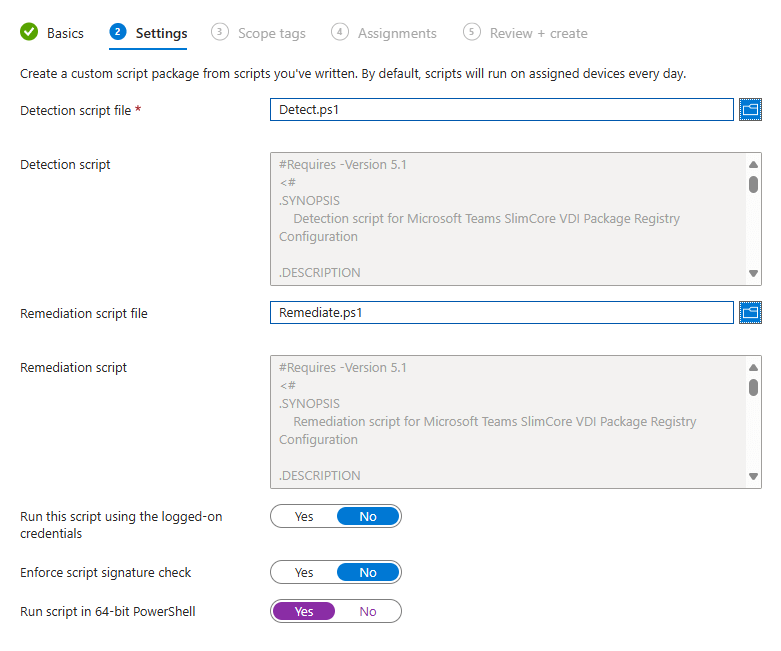
Then assign to your end-user devices on a schedule of your choice (after testing, of course 😉).
Trust but Verify
Once the remediation has ran, you should have the following registry entries present:

And your Teams within W365 \ AVD should now be optimised:

And we’ve got some slimcore appx packages:

Bonus Content
Look into adding Teams and Teams VDI optimisations app permissions on your users’ behalf to further optimise the onboarding and end user experience of teams via Windows 365 and Azure Virtual Desktop:
References: https://learn.microsoft.com/en-us/microsoftteams/vdi-2#step-3-slimcore-msix-staging-and-registration-on-the-endpoint


Thank you very much for your remediation!
Unfortunately, neither the GPO setting, nor your script are working anymore.
The values are set correctly in the registry (your detection script says “all good”, remediation also does not add anything), however the newest SlimCore MSIX – specifically the “Fwk” one – is still / again blocked. Eventlog again shows “0x80070005”.
Do you happen to have any idea why / what can be done?
cheers
FYI: we found a working string for the whitelisting that now caused the new Fwk package (version that did not work anymore is 38.1.7) to also get installed:
^Microsoft.Teams.*_8wekyb3d8bbwe$
Yes, it is broader, but any other attempt we made did not work for some unknown reason…
Sorry for the lateness of the reply, thanks for posting of your solution 😊.
someone got the same issue. The app wont register under the user. When i turn off BlockNonAdminUserInstall it will work. So it looks like it wont check the allow list.
Hey Ben, sorry I don’t follow, are you having the same issue as Dominik? There’s a potential solution posted by him if it helps.