


Last Updated on 25/02/2026 by Alex
One of the most common questions that comes up when moving organisations to modern management is what to do with departmental file shares. The traditional approach of DFS shares and mapped drives doesn’t translate well to a cloud-first world, and SharePoint document libraries via OneDrive are the natural replacement for most scenarios.
Getting OneDrive KFM in place is usually the first step, and if you haven’t done that yet, check out my post on Maximise your OneDrive: Recommended Profile Settings via Intune, which covers KFM along with a whole host of other recommended OneDrive settings to get the most out of your deployment. This post picks up from there and covers how to automatically sync SharePoint document libraries to end user devices using a configuration profile in Microsoft Intune, so users find their departmental libraries already waiting for them when they log in, without having to manually browse to SharePoint and click sync themselves.
We’ll also cover a neat trick using Remediations to cut down the default 8 hour delay before assigned libraries appear on devices, which is one of those things that can make a real difference to the user experience during rollout.
The old way vs the new way
On the road to modern management, the decision on what to do with user profiles and departmental data comes up very quickly, in the traditional environment we would typically have DFS file shares setup for Departmental data and Active Directory home folder created for every user (sometimes referred to U or H Drive, etc), the modern management approach is typically to migrate the end-users home folder to OneDrive and to migrate departmental shares to SharePoint document libraries, Azure Files Sync or Microsoft Teams (I won’t cover Azure files sync or MS Teams).
| Traditional | Modern |
|---|---|
| Home folder (U-Drive) | OneDrive |
| DFS File Shares | Azure Files Sync SharePoint Document Libraries Teams |
This post will describe how to set up the Windows client to automatically sync the SharePoint document library.
Understanding the limits
Beware of the following when syncing SharePoint document libraries via OneDrive
- Limit of 5000 files or folders synced to devices (in total, not OR) – I have personally seen a lot more files synced fine, but you won’t be supported by Microsoft if you break this limit.
- Limit of 1000 devices syncing a particular document library.
- Users may have to wait up to 8 hours until their document libraries appear on their devices; this is expected to ensure that the network isn’t overwhelmed. (More on this later to reduce the 8-hour wait)
Before you begin
Before we setup our Configuration Profile within Intune, we’ll need to gather the SharePoint document library ID(s), for this go to the settings on one of your document libraries:

Then copy the complete URL from the address bar and use [uri]::UnescapeDataString("Copied String") PowerShell command to covert to ASCII, then this is the URL that we’ll use to deploy our profiles to endpoints:

⚠️ Important
Once you have copied the library ID, it must be converted from Unicode to ASCII. To do this, open PowerShell and type in the following command (Ensure to insert your previously copied string): [uri]::UnescapeDataString("Copied String")
Creating the Configuration Profile
For me, I will use the same Configuration Profile that I used within my previous OneDrive KFM post (Note: now updated!), and find all of the OneDrive applicable settings by typing in OneDrive into the search box
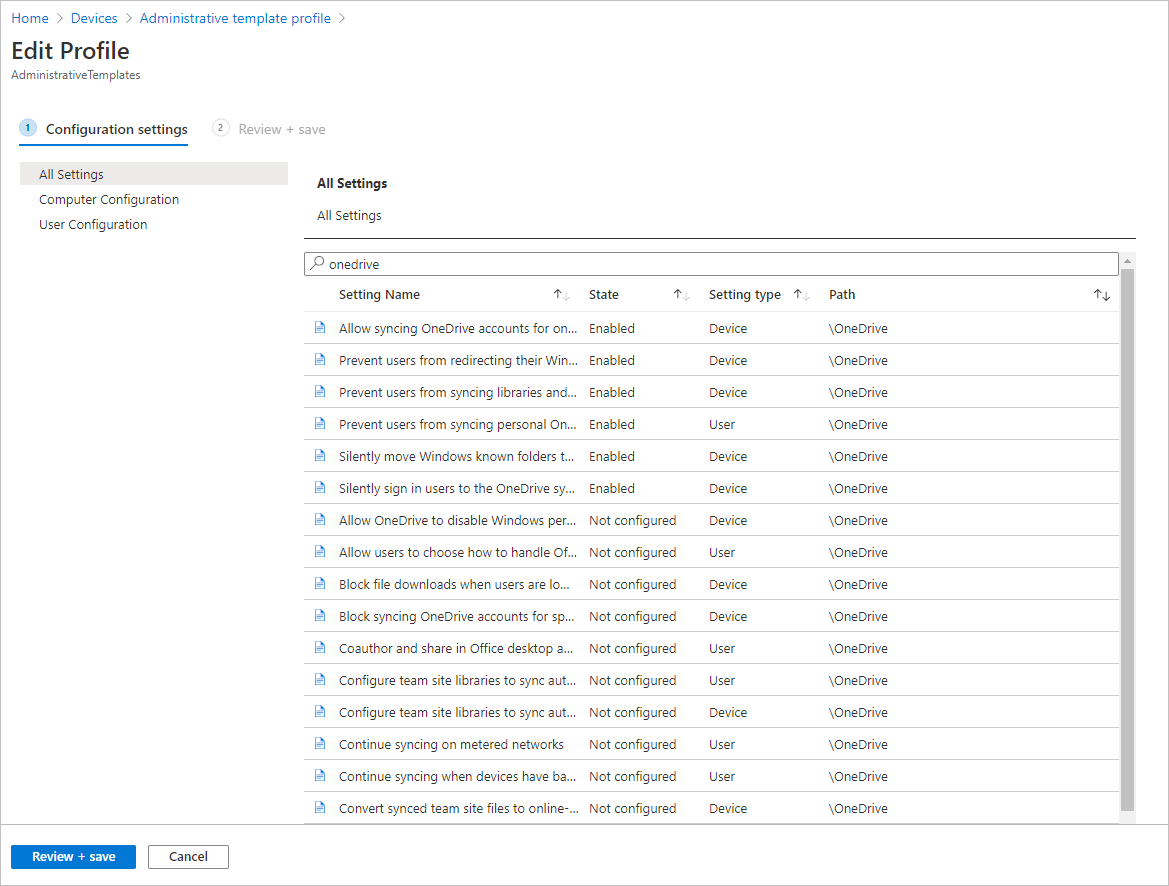
Configure team site libraries to sync automatically
Enable the Configure team site libraries to sync automatically settings, insert a name for your library so it’s easily identified and paste in the library ID from earlier after converting to ACSII (Take notice of the description):

⚠️ Important
If you have multiple configuration profiles, each containing their own list of libraries, and a user or device falls in the scope of more than one of those profiles, Intune will report a conflict, and none of the libraries will sync. This is a common gotcha, and it’s not immediately obvious from the error what’s causing it. The profiles don’t stack or merge; they conflict.
The approach I’d recommend is to have a single configuration profile containing all of your SharePoint library IDs. The key thing to understand here is that OneDrive will only surface a library to a user if they actually have permissions to access it, so there’s no risk of users seeing libraries they shouldn’t. This means you can safely throw all of your libraries into one profile and let SharePoint permissions do the heavy lifting on who sees what.
Before rolling this out, make sure your SharePoint library permissions are properly locked down. If they’re not, users could end up syncing libraries they have no business accessing, and that’s a data leakage problem rather than an Intune problem.
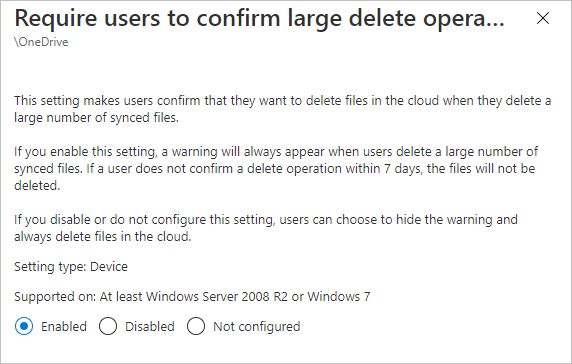
Require users to confirm large delete operations
This isn’t required to sync document libs, but I would recommend enabling this policy to avoid any accidental deletion of data
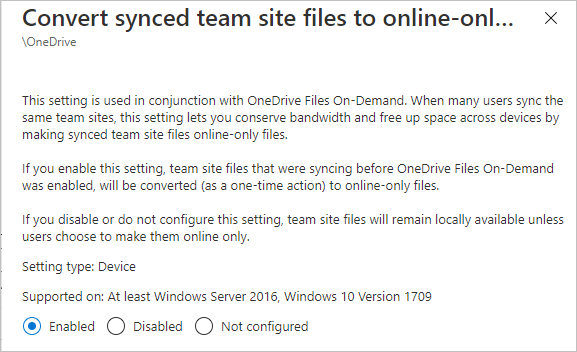
Convert synced team site files to online-only files
Just like above, this setting isn’t required but is recommended, essentially expanding Files-On-Demand technology to sync’d libraries
That’s it for the Configuration Profile. Deploy this to your test users before deploying to production.
Decreasing the 8-Hour delay
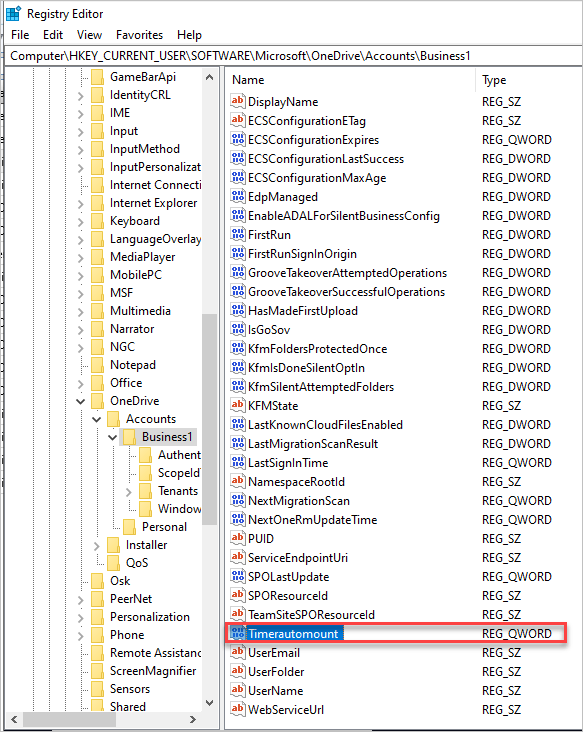
There is a registry key that decreases the delay for end-users to see their administratively assigned libraries via the OneDrive sync client; however, this key does get removed upon every reboot. I will show you how you can use the power of Proactive Remediations via Microsoft Intune to detect if this registry key exists and if not, create it, on a recurring schedule
Creating the Proactive Remediation profile
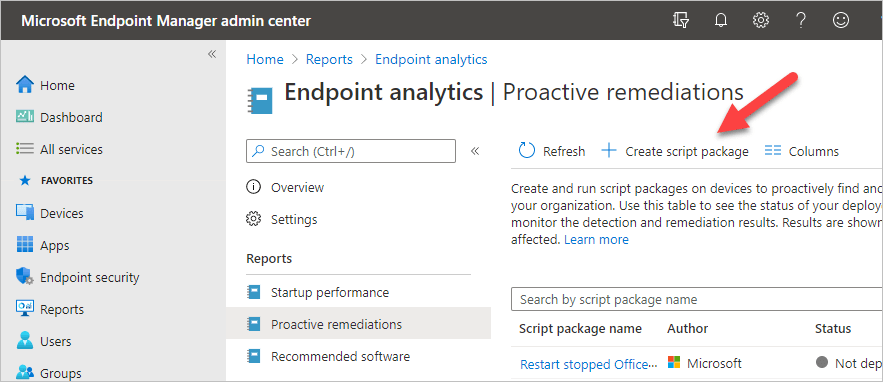
Navigate to Reports, Endpoint Analytics and then to Remediations; Click Create Script Package
Give an appropriate name and description (be more descriptive then me!)
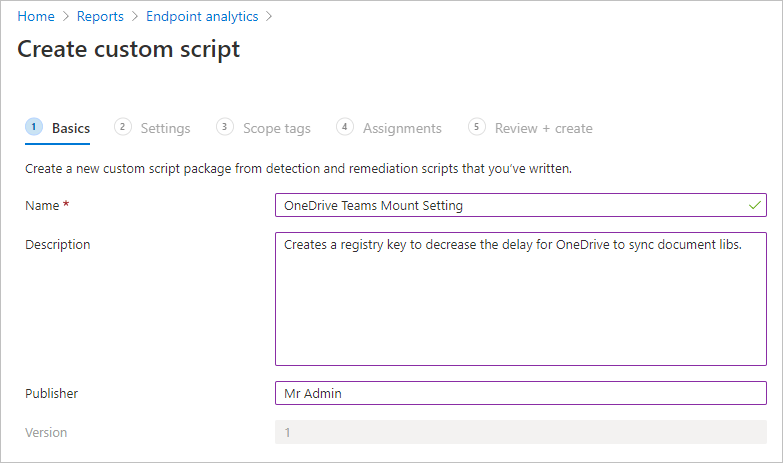
Now it’s time to upload the scripts, for the detection script, copy and paste the below PowerShell code:
$Path = "HKCU:\SOFTWARE\Microsoft\OneDrive\Accounts\Business1"
$Name = "TimerAutoMount"
$Type = "QWORD"
$Value = 1

Try {
    $Registry = Get-ItemProperty -Path $Path -Name $Name -ErrorAction Stop | Select-Object -ExpandProperty $Name
    If ($Registry -eq $Value){
        Write-Output "Compliant"
        Exit 0
    }
    Write-Warning "Not Compliant"
    Exit 1
}
Catch {
    Write-Warning "Not Compliant"
    Exit 1
}For the remediation script, copy and paste the below PowerShell code:
$Path = "HKCU:\SOFTWARE\Microsoft\OneDrive\Accounts\Business1"
$Name = "TimerAutoMount"
$Type = "QWORD"
$Value = 1

Set-ItemProperty -Path $Path -Name $Name -Type $Type -Value $Value Ensure that the Run this script using the logged-on credentials is set to Yes and the Run script in 64-bit Powershell setting to Yes. The Settings should look like so:

Finally, set a schedule and deploy the script package to the same users or devices as you did for your Configuration Profile. I have set the schedule to run every 1 hour
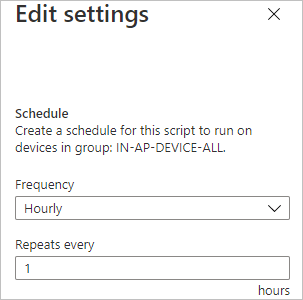
Testing the results
The Sales and Marketing document library is syncing with the files-on-demand set successfully
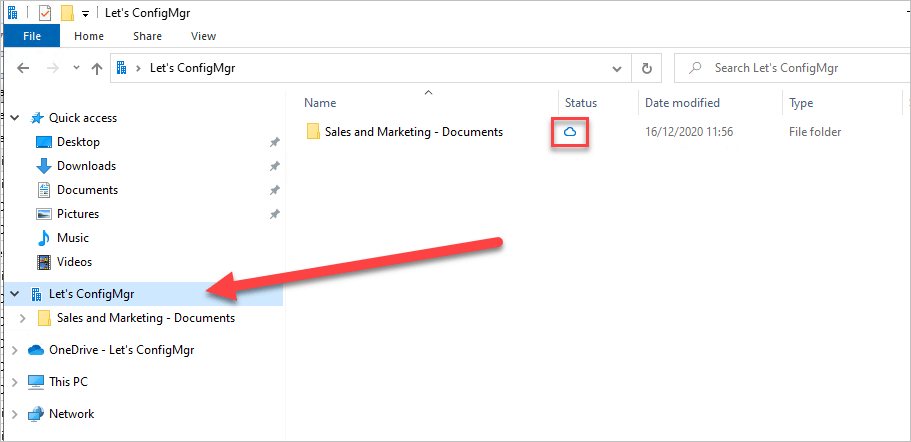
Confirmation within the OneDrive client, too
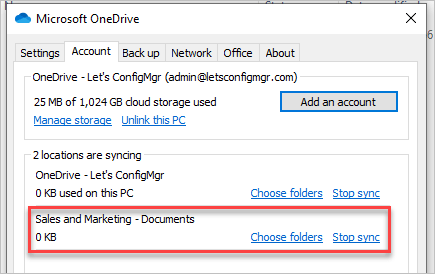
Confirmation of the Proactive Remediation script doing its thing
Bonus Tip: Use Storage Sense to clean up unused OneDrive data
Use Storage Sense to convert OneDrive offline files back to online on a schedule to ensure that disk space is constantly optimised. I have blogged on how to set up Storage Sense via Intune here.
References
https://docs.microsoft.com/en-us/onedrive/use-group-policy
https://docs.microsoft.com/en-us/onedrive/configure-sync-intune
Until next time!


Hi.
How would you do this one shared devices? Have a small company but have 8 users sharing 4 computers.
I see you have used the device policy on this articel.
Andy