


Last Updated on 25/02/2026 by Alex
Back in August last year, I created a post on how to enable and configure Storage Sense within Intune by creating a custom profile that post is still relevant and can be found here, today, I want to show you how to deploy the exact same settings but via the new setting catalog recently released by Microsoft.
Introduction to the Settings Catalog
Firstly, what is this settings catalog? So, the setting catalog was released by Microsoft recently and it fundamentally changes how Windows 10 \ MacOS Configuration Profiles are created and managed. The main benefit of the settings catalog is that rather than using the inbuilt Configuration Profile templates, you essentially create your own templates, so you only select which settings you want to configure rather than using a template that may have settings that you don’t wish to edit. Here’s a couple of screenshots to compare setting password policies:


Objectives
As per our previous Storage Sense post, we want to configure the following items:
- Turn on Storage Sense
- Configure Storage Sense to run on a weekly schedule
- Delete temporary files
- Delete files in recycle bin that has been present for over 30 days
- Delete files in my Downloads folder if present for over 90 days
- Revert OneDrive synced files to revert to cloud-only if not accessed in over 30 days
Creating the Settings Catalog Profile
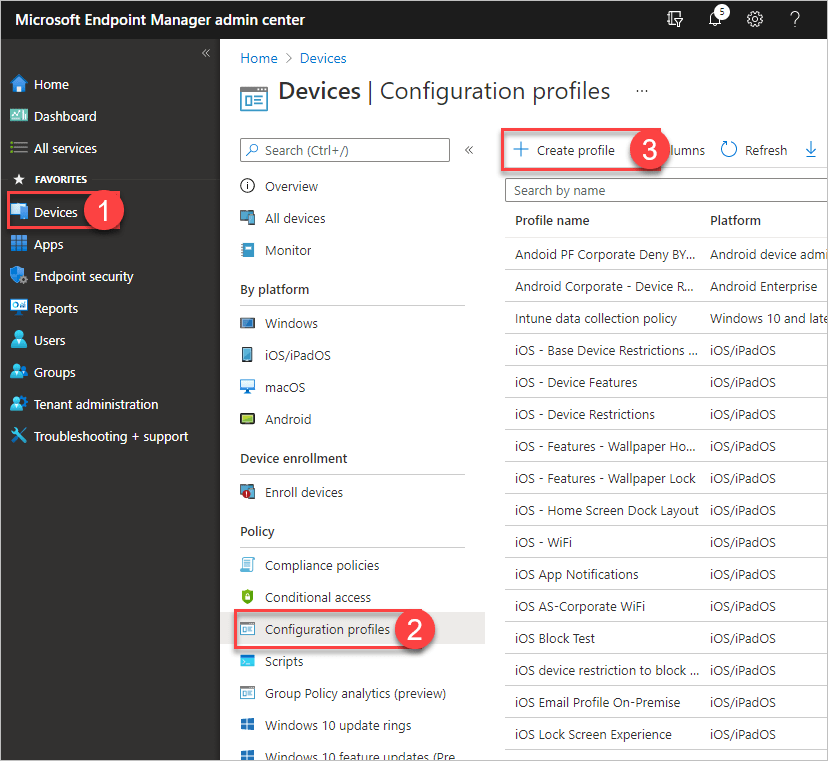
Log into the Intune Portal, navigate to Devices, Configuration Profiles and finally Create Profile:
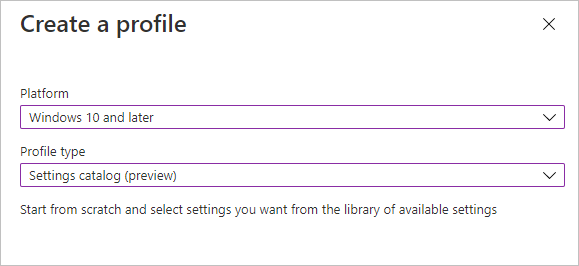
Select Windows 10 and later and a profile type of Settings Catalog (preview):
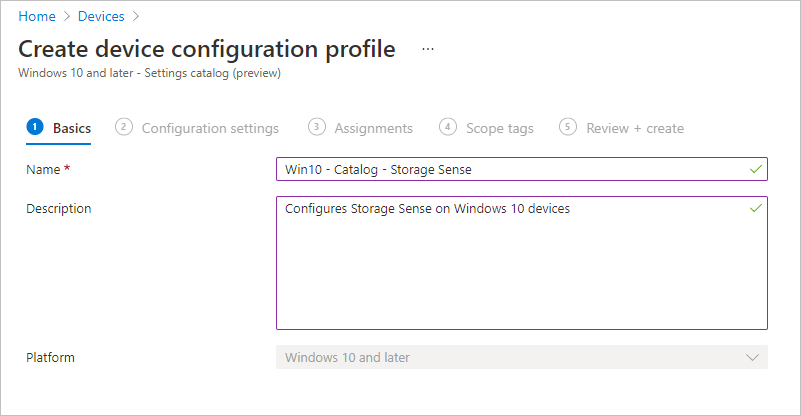
Select an appropriate Name and Description( you can probably do a better job of doing that then me):
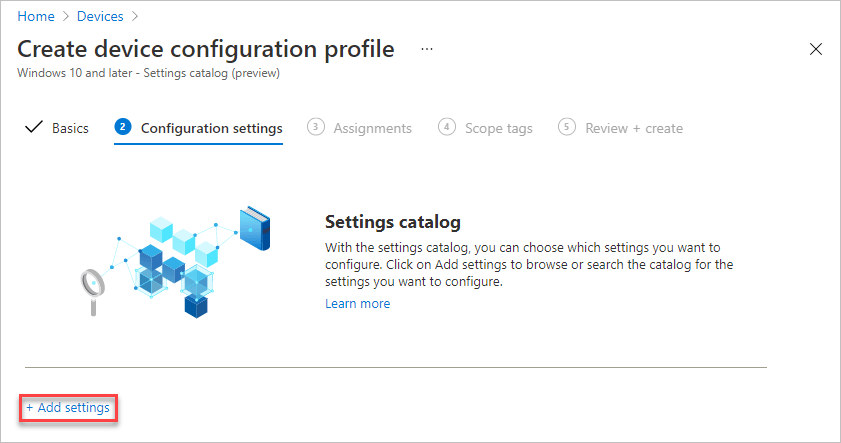
Select Add settings:
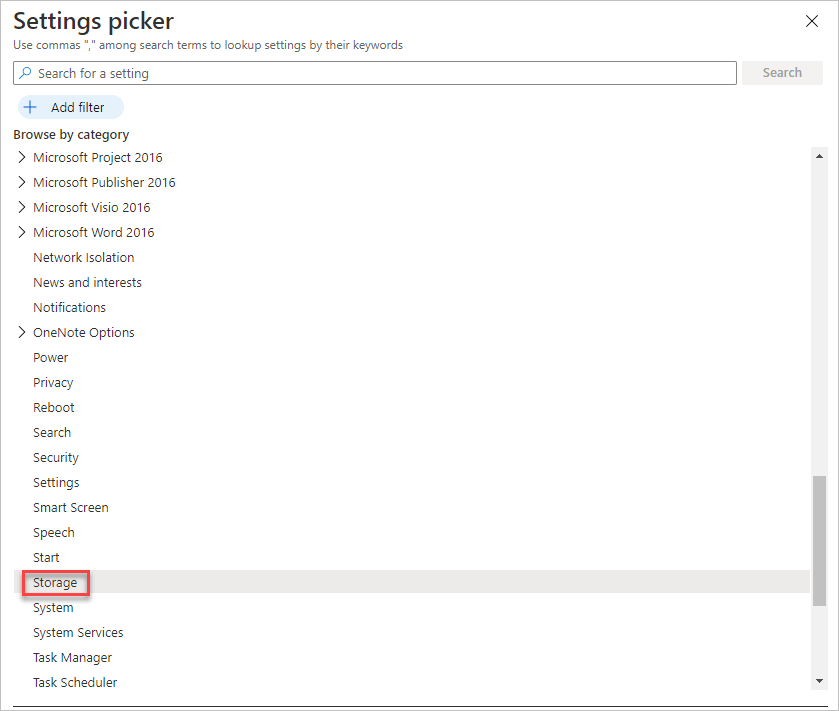
A new settings picker will appear, for which the items listed are essentially a list of CSP’s that Microsoft are supporting at the moment, select Storage:
📝 Note
For a full list of the CSP’s that Microsoft support and their descriptions, see this link.
A list of settings will be available to you, based upon what’s listed in the CSP reference for Storage we need to add in the following items:
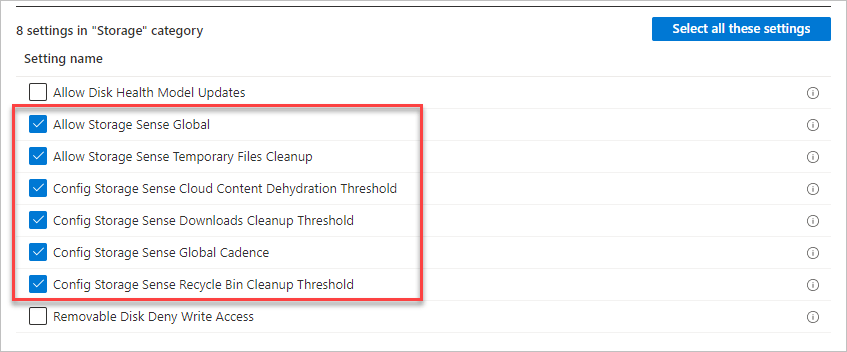
Now that we have the relevant settings added to our catalog, we simply need to enable them and configure our options for Storage Sense:

I will go through all of the options one by one and match them up against our objectives:
| Objective | Relevant Setting |
|---|---|
| Turn on Storage Sense | Allow Storage Sense Global – Allow |
| Configure Storage Sense to run on a weekly schedule | Config Storage Sense Global Cadence – 7 |
| Delete temporary files | Allow Storage Sense Temporary Files Cleanup – Allow |
| Delete files in recycle bin that has been present for over 30 days | Config Storage Sense Recycle Bin Cleanup Threshold – 30 |
| Delete files in my Downloads folder if present for over 90 days | Config Storage Sense Downloads Cleanup Threshold – 90 |
| Revert OneDrive synced files to revert to cloud-only if not accessed in over 30 days | Config Storage Sense Cloud Content Dehydration Threshold – 30 |
The resultant settings will be like so:

📝 Note
For more available Storage Sense values, see my previous post, where I went into detail on this.
Now deploy the Configuration Profile to a test device to ensure all is well.
Trust but Verify
After the newly created Settings Catalog profile has been deployed, navigate to the Settings app, then System, then Storage and observe the configured settings:

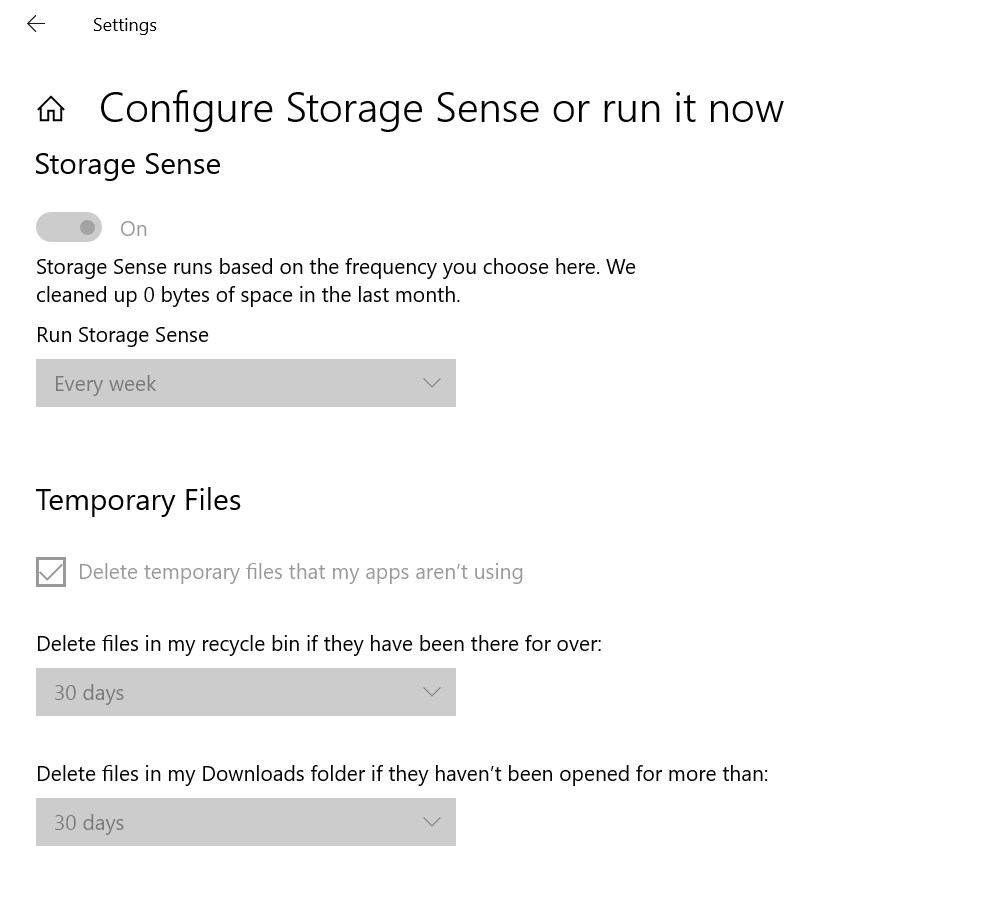
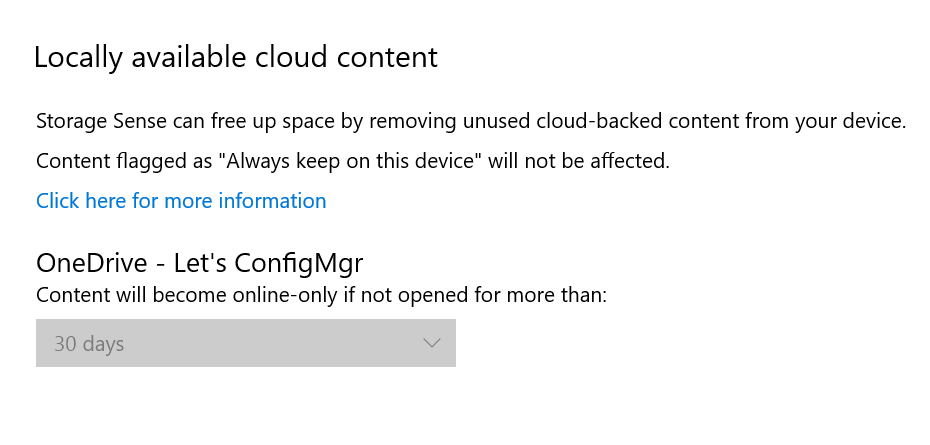
Great, you’ve just deployed a Storage Sense configuration profile powered by MEM, having storage sense is a fantastic addition, especially when it comes to reverting OneDrive files back to cloud-only after a set period of time to reduce local disk space.

Until next time!
Bonus: Storage Sense Not Deleting Downloads?
One thing you might notice after deploying this profile is that the Downloads cleanup threshold doesn’t always behave as expected. Despite being configured correctly in the policy, Storage Sense can fail to actually delete files from the Downloads folder in certain scenarios.
If you’re running into this, I’ve written up a workaround post that covers exactly what’s happening and how to get around it. Check it out here: Storage Sense not deleting downloads — Workaround.


Pingback: MEM - Managing Storage Sense - Let's ConfigMgr!