


G’day! This one is a bit different from my usual Intune and AVD content: a personal side quest. I wanted something to mute apps during Teams calls automatically, because I kept getting caught out by the same daft scenario. A call comes in, Spotify is playing, and a YouTube video is going in one of the 50 Edge tabs I have open. By the time I have found the right tab to mute, I have either missed the call or answered it flustered.
Not a big problem, just annoying. And it happened often enough that I went looking for a fix.
Why I wanted to mute apps during Teams calls
Joining a meeting has the same worry in reverse. You think everything is quiet, then a paused video autoplays, or a forgotten tab pipes up mid-sentence. You end up doing a nervous sweep of the volume mixer before every call, and still missing something.
Windows does have a built-in answer of sorts: the Communications tab in Sound settings can reduce other audio “when Windows detects communications activity”. In my experience the new Teams client triggers it inconsistently, it lowers rather than mutes, and there is no control over what gets caught. Close, but not it.
So I went looking for a proper tool. I genuinely expected this to be a solved problem, and I could not find anything that did what I wanted: mute everything except Teams when a call starts, then put every app back exactly as it was afterwards. The “exactly” part matters. If Spotify was at 35%, I want it back at 35%, not blasted to full. If an app was already muted before the call, it should stay muted after.
So I vibe coded it
I am not a C# developer. My day job is EUC: Intune, AVD, Azure, the usual suspects. But this felt like a well-bounded problem, so I described exactly what I wanted to Claude Code and vibe coded it over a couple of evenings: what to mute, what never to touch, how call detection should work, and every edge case I could think of (apps opened mid-call, Teams crashing, my own tool being killed mid-call).
I will be honest about what vibe coding meant here: I reviewed the approach at each step, tested every behaviour on my own machine, and pushed back where the first idea was not good enough. The ringing detection below went through a proper design discussion before any code existed. It is my spec, tested by me, with the heavy lifting done by the AI.
The result is Teams Audio Ducking, free and open source (MIT).
What Teams Audio Ducking does
It sits in the system tray and watches for Teams calls. That is the whole job:
- The moment a Teams call starts ringing or connects, every other app is muted: every tab, every player, on every audio device, including apps you open mid-call.
- When the call ends, each app comes back exactly as it was. Volumes and mute states are recorded per app before touching anything, and restored precisely afterwards.
- Teams itself is never muted, and your microphone, master volume and default device are never touched.
- Optionally, it can raise Teams’ own volume to a set level during calls (only ever raises it, and puts it back afterwards).

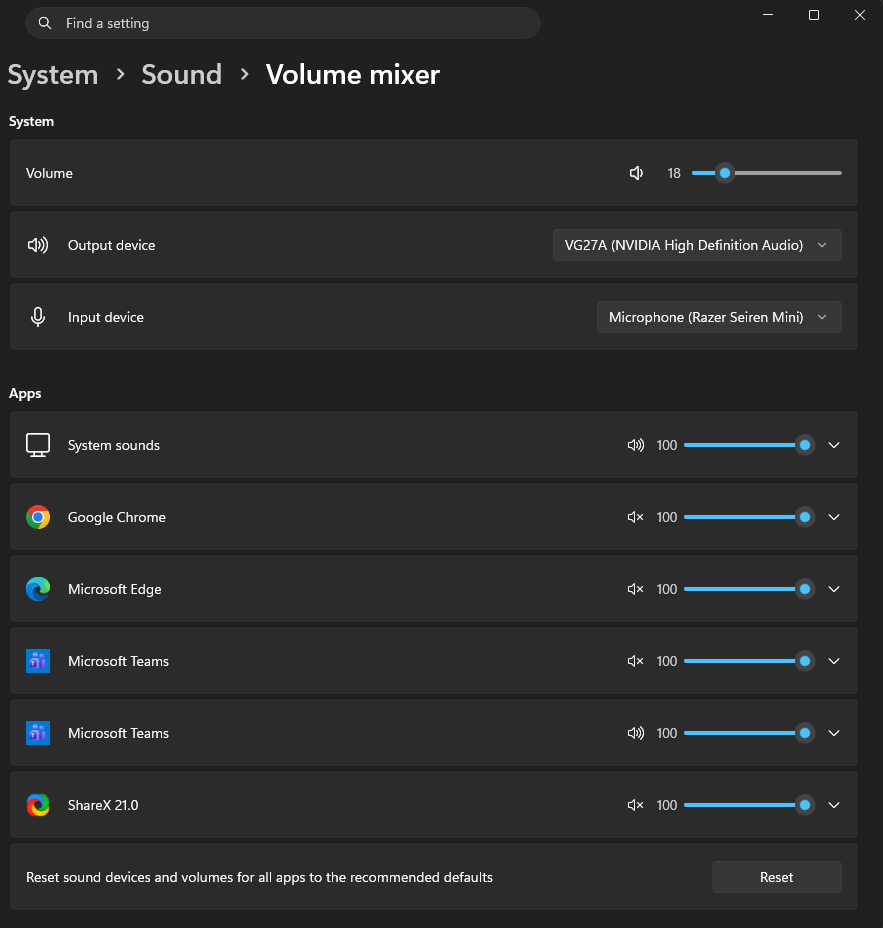
It also survives the ugly cases. If an app restarts mid-call it gets re-muted with its original state remembered. If the utility itself is killed mid-call, state is persisted to disk and restored on the next start. If you close an app while it is muted, it is fixed up when it reappears (Windows remembers per-app mute, which would otherwise leave apps silently muted forever).
How it knows you are in a call (and why it is not listening to you)
There is no public local API for the new Teams client’s call state, so the tool uses two signals Windows already tracks:
- Microphone in use. Teams holds the mic open for the whole call, even when you are muted in Teams. Windows records which apps have the mic open (the same bookkeeping behind the taskbar mic icon and the privacy settings list), and the tool watches that for changes.
- Ringing. Before a call connects there is no mic activity, so it watches the active/inactive state of Teams’ own audio sessions instead, via the Windows Core Audio APIs. Teams playing sound continuously for 1.5 seconds or more is the fingerprint of a ringtone or ringback tone, so muting starts while it is still ringing. Notification chimes are far shorter and get ignored.
📝 Note
Both signals are yes/no state flags. The tool never opens the microphone, never receives or analyses any audio in either direction, and has nothing it could record even in principle. It is also fully local: no internet access, no telemetry, no sign-in.
Everything is event-driven rather than polled, so it sits at effectively zero CPU while idle.
Getting it
Grab the latest setup from the releases page and run it. It installs per-user (no admin prompt), adds a Start-menu shortcut, and offers a start-at-sign-in tick. There is also a portable zip on the same page if you would rather just run the exe.


⚠️ Important
The first time you run the setup, Windows SmartScreen will likely show “Windows protected your PC”. That is expected: the installer is not code-signed, so SmartScreen has no reputation data for it. Click “More info”, then “Run anyway”. If you would rather not take my word for it, the source is on GitHub and you can build it yourself.
Upgrading is just running the newer setup over the top; settings are kept. Uninstalling is the normal Settings > Apps route.
Settings worth knowing
Double-click the tray icon and you get a small settings window:
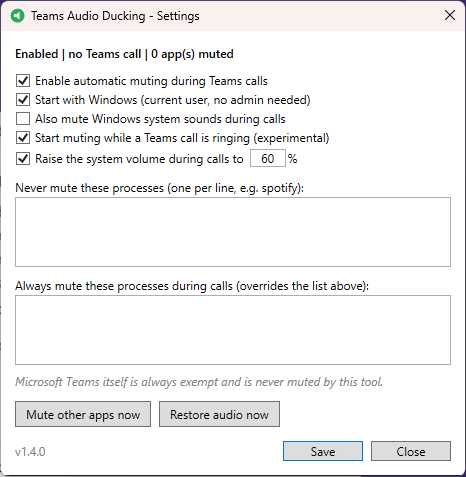
- A never-mute list, for anything that should play through calls (one process name per line, e.g.
spotify). - An always-mute list that overrides it.
- “Start muting while a Teams call is ringing”, on by default.
- “Raise Teams’ own volume during calls to X%”, off by default. Handy if Teams is always that bit quieter than everything else. It works on Teams’ app volume, not the master volume, and only ever raises it.
💡Tip
If you use Teams in a browser alongside the desktop app, add your browser to the never-mute list. Browser calls are not detectable (the mic usage belongs to the browser, not Teams), so this stops the tool muting a web call when a desktop call comes in.
One behaviour I made deliberate: if you click “Restore audio now” during a call, it stays restored. The tool will not re-mute behind your back until the next call.
Limitations
- A mic test in Teams settings, or recording a video clip in chat, looks identical to a call: other apps mute until you finish.
- Joining with “Don’t use audio”, and view-only webinars or live events, never open the mic, so nothing is detected.
- Long Teams voice messages count as sustained playback, so they trigger muting until they stop (untick the ringing option if that bothers you).
- If Windows privacy settings block Teams’ microphone access, detection cannot work at all.
FAQ
Does Teams Audio Ducking listen to my calls or my microphone? No. It reads two yes/no state flags Windows already tracks: which apps have the mic open, and whether Teams’ audio session is active. No audio ever passes through the tool, and it never opens the microphone.
Can it mute Spotify during Teams calls? Yes, that is the main use case: it will mute Spotify during Teams calls along with every other non-Teams app, then restore its exact volume afterwards. If you want Spotify left alone instead, add it to the never-mute list.
Can it increase Teams volume during calls? Yes, optionally. Set a target percentage and Teams’ own app volume is raised to it during calls, then put back afterwards. It never touches the master volume.
Does it work with Teams in the browser? No. Browser calls cannot be distinguished from the browser’s other mic usage. It covers the new Teams desktop client and classic Teams.
Why does Windows SmartScreen warn me when installing it? Because the installer is not code-signed (certificates cost real money, and this is a free tool). The warning is expected; More info, then Run anyway. Or build from source if you prefer.
More tools I have built
This is not my first “scratch my own itch” tool, though it is the first one aimed at my ears rather than a tenant:
- Azure VM Script Runner: run scripts and PSADT deployments across groups of Azure Windows VMs without the RDP loop.
- Intune Bulk Rename Policies Tool: bring order to an inherited tenant’s policy naming in bulk.
- AVD Monitoring Baseline (Community Edition): a sensible monitoring starting point for AVD.
- Intune regional settings proactive remediation: fixing UK regional settings at scale, the boring way that works.
Wrapping up
A personal side quest rather than proper EUC content, but it has quietly become one of the most-used things on my machine: every call just starts quiet now. And it was a good test of what vibe coding is actually like when you hold it to a spec: I would not ship what an AI writes unreviewed, but for a bounded personal tool with me testing every behaviour, it turned a “one day I should…” into a working utility in a couple of evenings.
If you try it and something misbehaves, the GitHub issues page is open. The log file it keeps locally will usually tell us exactly what happened.
Happy ducking! 👌
Alex

