


Here’s a scenario most Azure admins will recognise. Something needs doing on a group of Azure Windows VMs. Nothing complicated, maybe a service restart, a registry check, or an application that needs reinstalling. The task itself takes a minute. Getting to it doesn’t: it’s RDP onto the first VM, do the thing, log off, RDP onto the next one, and repeat until the coffee’s (or in my case, green tea 😉) gone cold.
Azure VM Script Runner (AVSR) is a free, open-source desktop tool that removes that loop. It discovers your Azure Windows VMs, runs PowerShell or CMD against as many of them as you select at once, deploys full PSAppDeployToolkit (PSADT) packages straight from private blob storage, and can schedule any of it through Azure Automation. No RDP, no agents to install, no WinRM to open up.
To be fair, if you’re running a mature RMM platform or something like Azure Arc with full management tooling across your estate, you may already have this covered. Plenty of environments don’t, though, and when the choice is the portal’s one-VM-at-a-time Run Command blade or another round of RDP roulette, there’s room for a lightweight alternative built purely on Azure native services: Resource Graph for discovery, Run Command for execution, Azure Automation for scheduling and Entra ID for sign-in.
📝 Note
Azure VM Script Runner is for Azure Windows VMs only, and it’s provided free, as-is, with no warranty of any kind. Everything it runs executes as SYSTEM on the target machines.
The kind of problems it helps with
A few challenges this approach is well suited to:
Application fixes faster than an image rebuild. Think of an Azure Virtual Desktop estate built from image templates or a pipeline such as Azure Image Builder. If a broken application update starts causing issues on live session hosts, the proper fix is a new image, but that build and redeploy can take hours. With a PSADT package that removes the bad version and installs the good one, you can select every affected host and have the fix live in minutes, while the image pipeline catches up in its own time.
The in-guest half of Azure changes. Expanding managed disks is easy in Azure, but every C: drive still needs to be extended inside Windows afterwards. That’s one Resize-Partition script pushed to all of the VMs in one go, instead of a session on each.
Policy that can’t wait. A critical Group Policy change has gone in, and you’d rather not wait for the refresh interval across the estate. Push gpupdate /force to the lot and be done.
Everyday fleet questions. Which VMs have a pending reboot? How much free disk is left? Is the guest agent healthy? One run, one answer per VM.
⚠️ Important
The tool is only ever as good as what you ask it to run. It will execute your PowerShell, CMD and PSADT packages exactly as written, as SYSTEM, on every VM you select. Test your scripts and packages somewhere safe first, make sure they’re not destructive, and treat the confirmation dialogue as a genuine last check rather than a formality.
Features at a glance
- VM discovery across every subscription in about a second (Azure Resource Graph), with portal-style multi-select filters and tag search
- Bulk execution of PowerShell and CMD with per-VM status, exit codes, durations and output, configurable parallelism, timeouts and cancellation
- PSADT deployments (v3 and v4, auto-detected) from private blob storage, with automatic package access and no SAS keys to manage
- A reusable task library with sensible built-ins and your own saved scripts and deployments
- Scheduling via Azure Automation, including recurrence up to “monthly on the second Tuesday”, time zones, expiry and parallel batches
- Full local history of every run: script content, output, errors and classified exit codes
- Safety rails throughout: every execution confirms the full target list, and anything over five VMs triggers a mass-operation warning
- Portable: a single exe, nothing to install, sign in with Entra ID, no stored credentials
Getting it
It’s a portable exe, no installer and no .NET runtime to pre-install. Grab the zip from the GitHub releases page, unzip, and run AzureVmScriptRunner.exe:


📝 Note
Releases are unsigned (it’s a free tool and code signing certificates are not), so SmartScreen may prompt on first run: More info, then Run anyway. SHA256 hashes are published with every release, so you can verify the download first, which I’d recommend.
Permissions and first-time setup
The app opens on a Prep page which doubles as the setup guide, covering every permission and one-time setup step before you connect:

In short, the account you sign in with needs:
| What you’re doing | Role required | Scope |
|---|---|---|
| Discovering VMs | Reader | Target subscriptions |
| Running scripts / deployments | Virtual Machine Contributor | Target VMs or resource groups |
| PSADT deployments | Storage Blob Data Reader | The storage account holding your packages |
💡 Tip
Storage Blob Data Reader is a data-plane role, and it catches everyone out at least once. Being Owner or Contributor of a storage account does not let you read blob contents, and the result is a confusing 403 until the right role is in place. The Prep page includes ready-to-copy az commands.
Sign-in is an interactive Entra ID browser prompt every time the app opens. That’s a deliberate design choice: a tool with this much reach shouldn’t silently reuse cached credentials.
Using the tool
A walkthrough of the day-to-day flow: find the VMs, run something, deploy something, save it for next time.
Discovering and selecting VMs
Discovery goes through Azure Resource Graph, so every Windows VM you have access to, across every subscription, appears in about a second. Filters behave like the Azure portal: multi-select dropdowns for subscription, resource group, region and power state, plus free-text search that also matches tags.

Tick the VMs you want, and the selection follows you to every other page. Each selected VM is shown by name in a small tag at the top of the Run, Deploy and Schedule pages, so there’s never any doubt about which machines you’re about to touch.
Running commands across multiple VMs
The Run page takes PowerShell or CMD. Paste your script, set a per-VM timeout, choose how many VMs execute at once, and run:
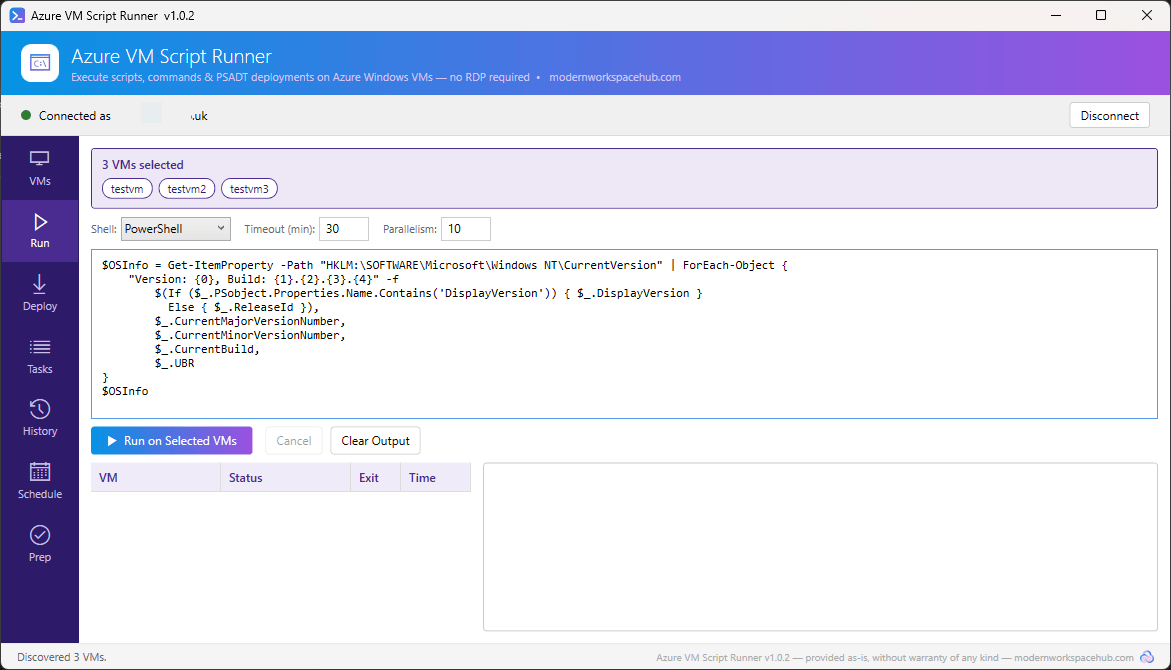
Before anything happens you get a confirmation listing every target VM by name and resource group. Target more than five and the dialog upgrades to a mass-operation warning, which is exactly the moment to double-check a leftover filter.

Here’s a version report across three VMs, all executing in parallel:

Each VM gets its own row with live status, exit code and duration, and the log captures the complete output. Every run is also written to a local history database, which we’ll come back to.
Deploying PSADT packages from private blob storage
If you already package applications with PSADT, your packages work here unchanged. Both v3 and v4 are supported and the entry point is detected automatically.

The package URL is the plain https address of the zip in your storage account. No SAS token, and that’s the point: access is handled automatically, using the VM’s managed identity where one exists, otherwise via a one-hour, read-only SAS issued under your own identity at execution time. Nothing long-lived is ever created or stored.
Choose Install, Uninstall or Repair, a deploy mode (Silent is the default and the sensible choice, since everything runs as SYSTEM in session 0), and how many VMs to run per wave. Then deploy:
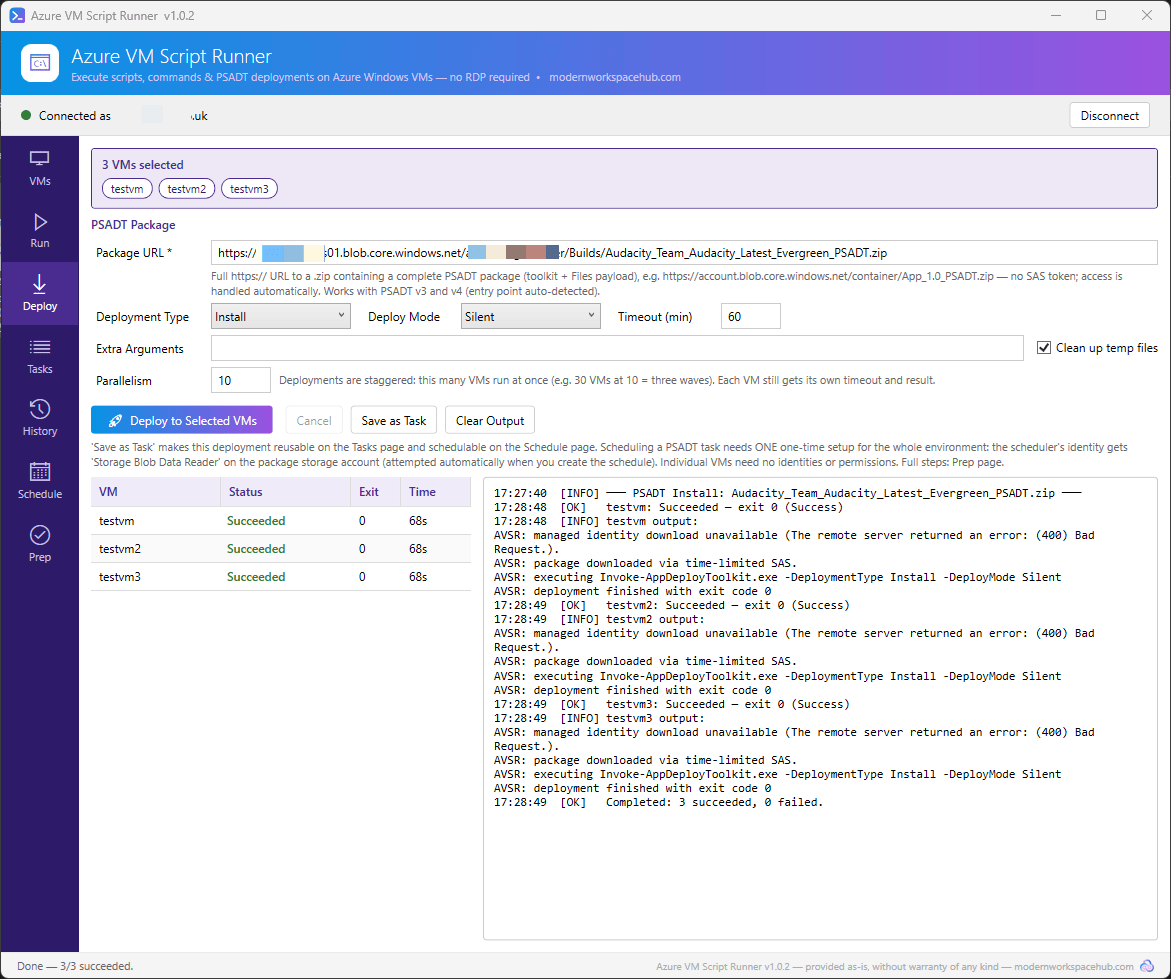
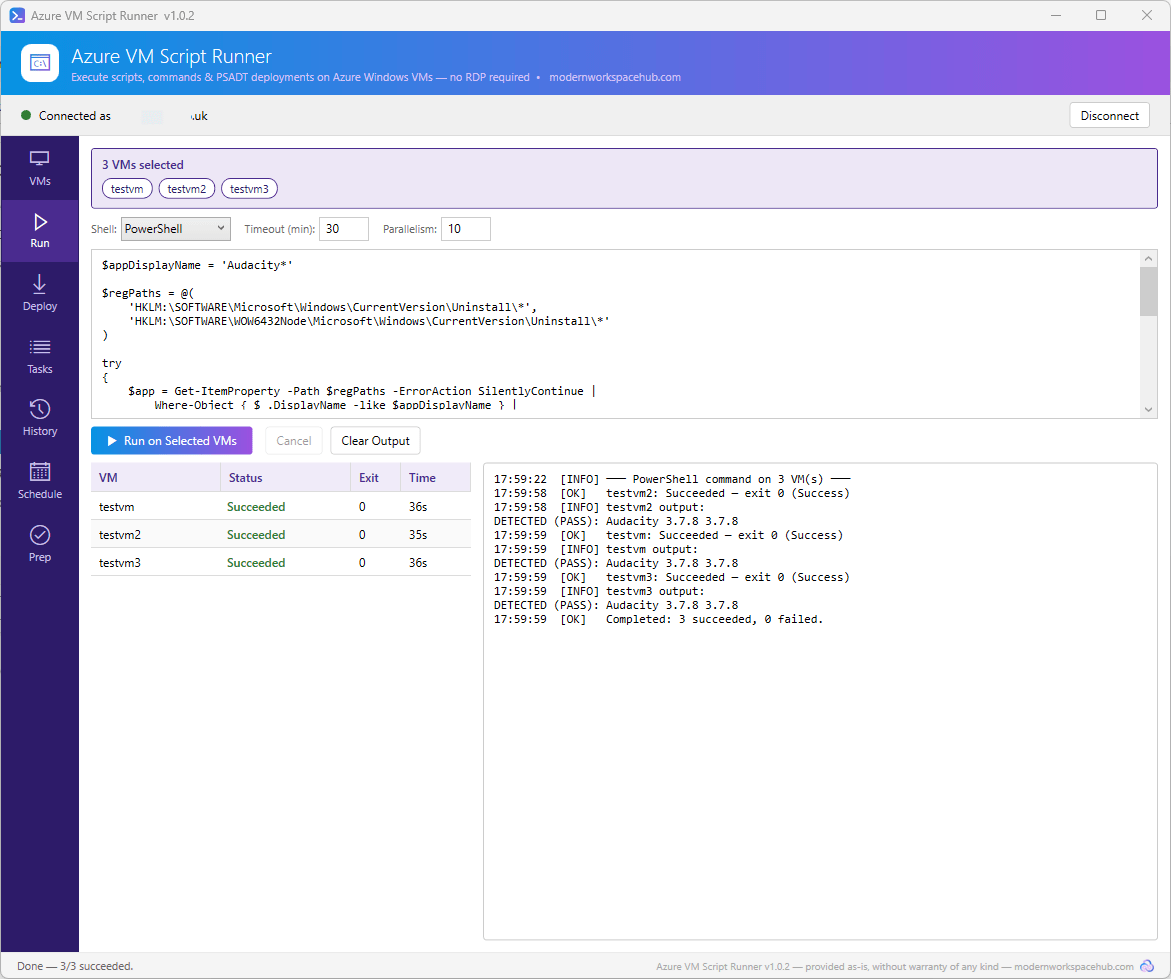
The log tells the full story per VM: download method, extraction, toolkit detection, exit code. And because trust is good but verification is better, a quick detection script on the Run page confirms the application is actually present:
Saving reusable tasks
Anything you run more than once belongs in the task library. The app ships with a set of built-ins (Group Policy update, flush DNS, restart the guest agent, pending reboot check, disk space report and more) and you can save your own PowerShell, CMD or PSADT tasks alongside them:
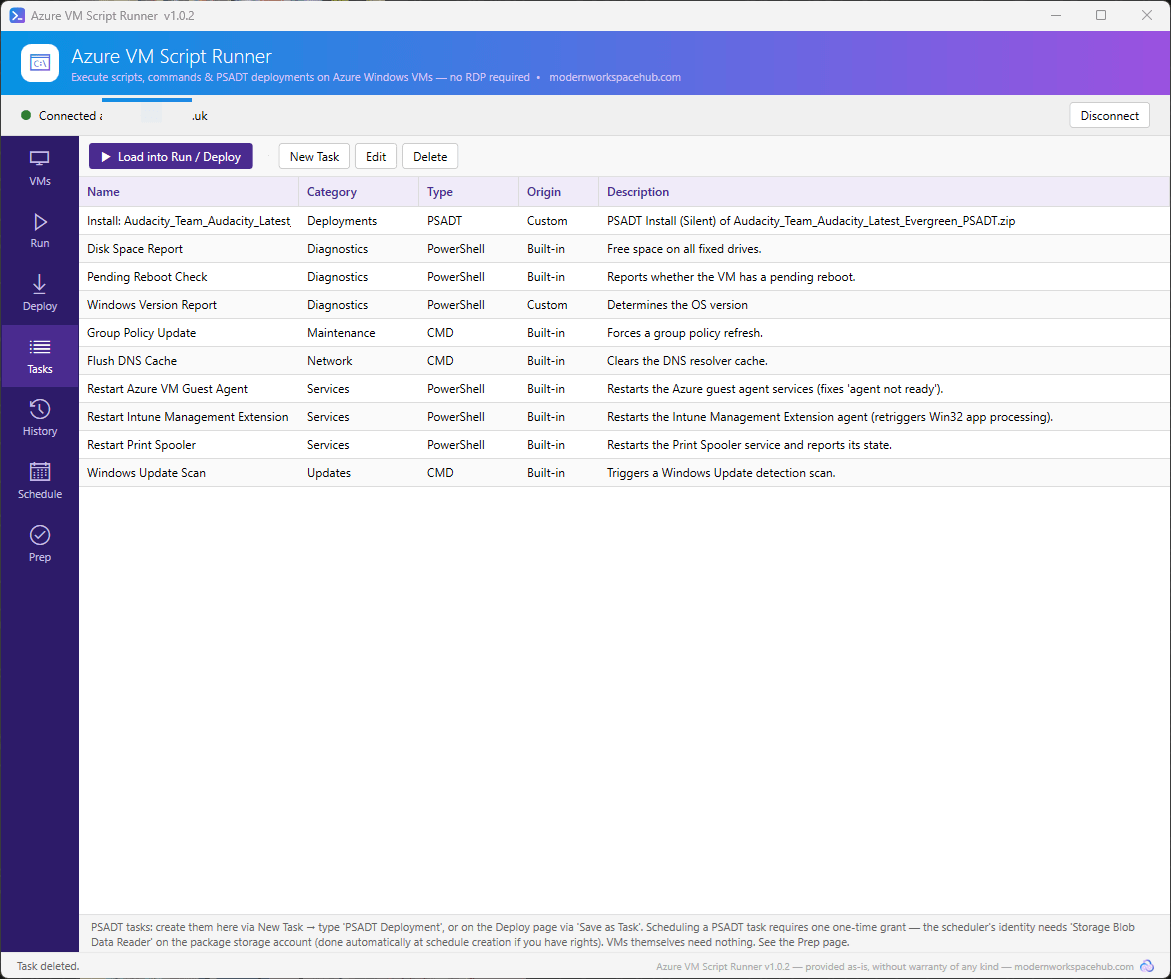
There’s a Save as Task button right on the Deploy page, so a deployment you’ve just proven becomes a reusable one-liner. You can also build PSADT tasks directly in the task editor:

Tasks never execute directly from the Tasks page. Loading one into Run or Deploy puts it in front of you with the target list and confirmation, so the safety net stays intact.
Scheduling through Azure Automation
Now the part that saves your evenings. Say that Chrome deployment needs to happen at 21:05 rather than during the day. Scheduling hands the work to Azure Automation, which fires it on the timer whether your machine is on or not.
Provisioning the environment (one time)
The first time you schedule anything, the app offers to provision a small Azure Automation environment, and it’s completely upfront about what that means:

One resource group, one Automation account with a managed identity, and one shared runbook. Naming follows Cloud Adoption Framework conventions and everything is editable, including your own tags and, if your governance prefers it, a user-assigned managed identity you bring yourself. Azure Automation’s free tier includes 500 job minutes a month, which covers a lot of scheduled maintenance.

It’s worth highlighting that it’s one runbook in total, not one per schedule. Every schedule is just a set of parameters against the same runbook, so the Automation account stays clean, however many schedules you create. And if a colleague uses the tool later, it detects the existing environment and offers to adopt it (after properly validating the runbook, contents included) rather than creating a duplicate.
How permissions work for scheduled runs
This deserves spelling out, because it’s different from running things interactively. When you use Run or Deploy in the app, everything happens under your signed-in account and the roles from the permissions table earlier. Scheduled runs are different: at fire time, you’re not there, so everything runs under the Automation account’s managed identity instead. That identity needs two roles, and the app handles both for you where it can:
- Virtual Machine Contributor on the subscriptions containing your target VMs. This is what lets the runbook invoke Run Command. The app grants it on the hosting subscription during provisioning and attempts it on any other target subscription when you create a schedule (if your account can’t assign roles, it tells you exactly what to grant manually).
- Storage Blob Data Reader on the storage account holding your PSADT packages. Only needed for scheduled PSADT deployments, and again the app checks and grants it when you create the schedule.
Then, when the schedule actually fires, the runbook authenticates as that identity and, for PSADT deployments, mints a fresh short-lived storage token which it passes to each VM for the package download. Worth being precise here: scheduled runs never use a SAS. The one-hour SAS fallback mentioned earlier is only for interactive deployments under your own account; a SAS created at scheduling time would be long expired when the schedule fires days later, which is exactly why the token approach exists. If a target VM happens to have its own managed identity with storage access, that gets used first; otherwise, the scheduler’s token does the job, and individual VMs need no identities and no permissions of their own.
Creating a schedule
Scheduled PSADT deployments get one extra prerequisite check covering the storage role above, and the app is upfront about the whole mechanism before it creates anything:

Pick the start date and time (24-hour clock, in the time zone you select), recurrence up to “monthly on the second Tuesday”, an expiry if you want one, and a batch size. As with everything else, a confirmation listing every target VM stands between you and the Create button.
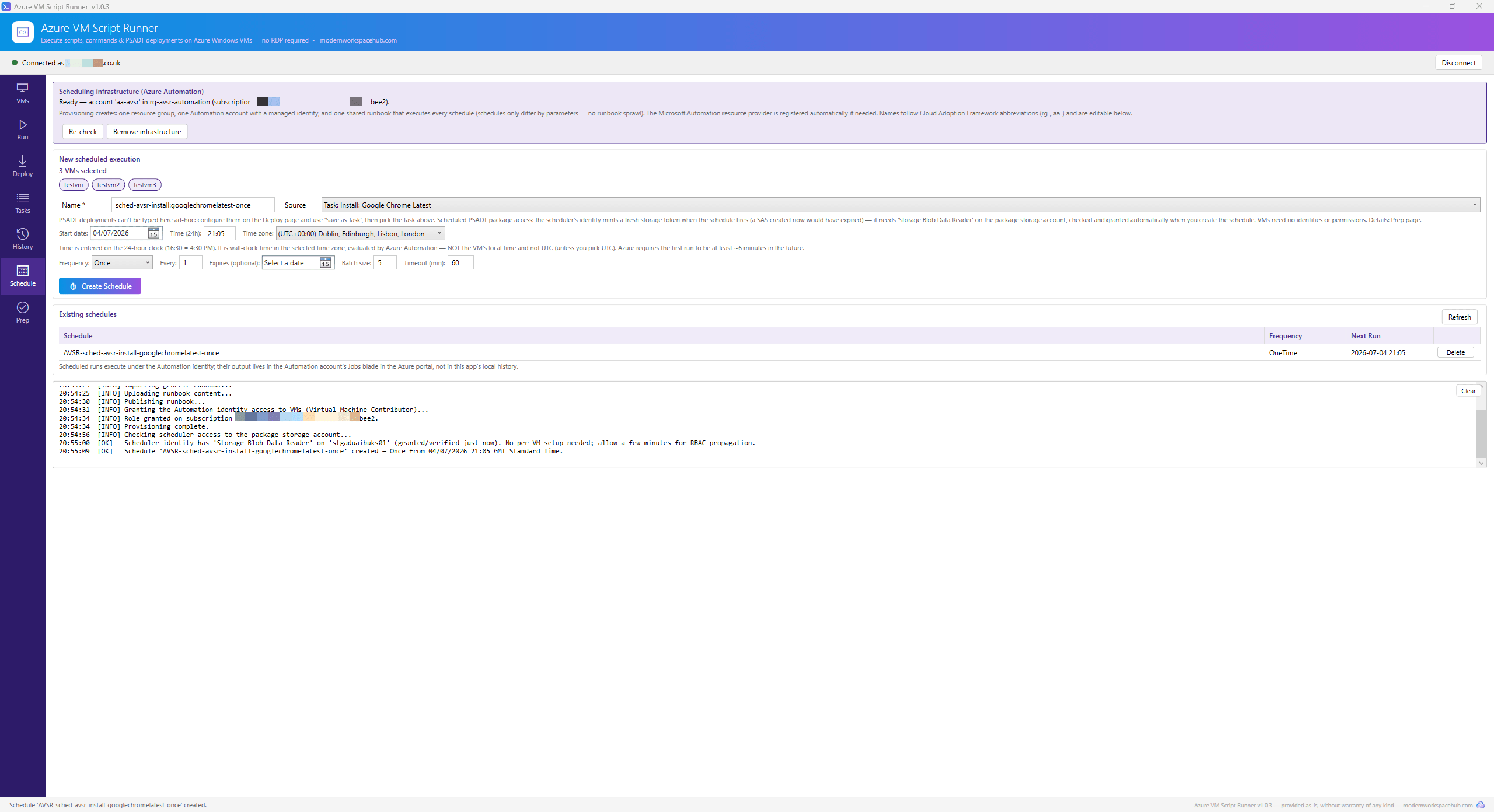
The schedule is a normal Azure Automation schedule, visible in the portal against the runbook:

The test
Time for the proof. At 19:55 VM time (VM time was UTC, it was actually 20:55 UK Time), no Chrome:

The schedule fired at 21:05 UK time, and shortly afterwards:

The job output in the Automation account is the best part. All three VMs ran as one parallel batch, each downloaded the package with the scheduler’s token, PSADT v4 was detected, and a summary wraps it up: three succeeded, none failed, 158 seconds end to end:

Batching matters at scale. A ten-minute install pushed to 25 VMs one at a time is a four-hour job; in batches of five it’s about fifty minutes. The batch size is yours to set per schedule.
History and auditing
Everything you run interactively from the app (the Run and Deploy pages) is recorded locally: who ran what, on which VM, when, the full script content, output, errors and a classified exit code (3010 appears as “Succeeded, reboot required” rather than a bare number).

One thing worth being clear on: scheduled runs do not appear in the app’s History page. They execute in Azure Automation under its own identity, so their logs live in the Automation account’s Jobs blade in the Azure portal instead (covered in the troubleshooting section below). And independent of the tool entirely, every Run Command invocation, interactive or scheduled, is captured in the Azure Activity Log, which remains the authoritative audit trail.
Troubleshooting: where the logs live
Most issues show themselves in the app’s own output, but when you need to dig deeper, here’s the map.
On the machine running the tool
- Execution history, including full script content, output and errors, lives in a local SQLite database at %LOCALAPPDATA%\AzureVmScriptRunner\avsr.db. The History page is a front end over exactly this file.
- App settings (including which Automation environment it’s pointed at) are in %LOCALAPPDATA%\AzureVmScriptRunner\settings.json.
- No credentials, tokens or SAS keys are stored anywhere by the app.
On the target VM
- Run Command activity is handled by the Azure guest agent. Its logs live under C:\WindowsAzure\Logs, with the Run Command handler specifics under C:\WindowsAzure\Logs\Plugins.
- Delivered scripts land under C:\Packages\Plugins on the VM, which is useful when you want to see exactly what arrived.
- PSADT keeps its own excellent logs, by default in C:\Windows\Logs\Software. For a deployment that failed mid-install, this is the first place to look.
- If you untick “Clean up temp files” on a deployment, the working folder (C:\AVSR<guid>, containing the downloaded zip and extracted package) is left behind for inspection. Remember to delete it when you’re done.
Scheduled runs in Azure
The full output of every scheduled run, including the per-VM detail and summary you saw above, is in the Azure portal under the Automation account: Process Automation > Jobs, then pick the job and open Output.
Each schedule stores its work as a single RequestB64 parameter, which is the whole execution request (script, target VMs, batch size) encoded as Base64. You can see it in the portal against the schedule itself, under Parameters:

If you ever want to verify exactly what a schedule will do, copy that parameter value and decode it: paste it into a decoder like https://www.base64decode.org/, use Notepad++ (Plugins > MIME Tools > Base64 Decode), or one line of PowerShell:
[Text.Encoding]::UTF8.GetString([Convert]::FromBase64String('PASTE-THE-VALUE-HERE'))Out comes readable JSON showing the display name, who created it, the timeout, the batch size, the package URL and the complete script.
📝 Note
The decoded request contains no secrets. Scheduled PSADT scripts carry a placeholder that is only swapped for a short-lived storage token in memory at the moment the schedule fires; nothing usable is ever written into the schedule itself.
Frequently asked questions
Does it work with Linux VMs? No. It’s Azure Windows VMs only, and Linux VMs are filtered out of discovery entirely.
Does it need an agent, WinRM or open ports on the VMs? No. Execution goes through the Azure Run Command channel, which uses the guest agent already present on every Azure Windows VM. Nothing to install, no inbound ports, no WinRM.
What does it cost to run? The tool is free and open source. On the Azure side, Run Command executions are free, and Azure Automation’s free tier includes 500 job minutes per month for scheduled runs, which is plenty for typical maintenance schedules.
Where do scheduled runs execute from? Azure Automation, under the Automation account’s managed identity. Your machine doesn’t need to be on, and the job output is kept in the Automation account’s Jobs blade.
Do my existing PSADT packages need changes? No. Zip them as they are, upload to blob storage, and both v3 and v4 packages work; the entry point is detected automatically.
Is anything stored anywhere I should worry about? No credentials, tokens or SAS keys are ever written to disk. Execution history is kept in a local SQLite database on the machine running the tool, and the Azure Activity Log independently records every Run Command invocation.
Wrapping up
That’s Azure VM Script Runner: discovery, bulk execution, PSADT deployments and scheduling against Azure Windows VMs, using nothing but Azure native services and a portable exe.
And if Intune is more your day-to-day, I’ve previously written about a tool for bulk renaming Intune policy names and descriptions. Same idea of taking the repetitive clicking out of admin work:

AVSR is free and open source (MIT):

The usual caveats, stated plainly: Windows VMs only, provided as-is without warranty, everything runs as SYSTEM, and the tool is only as good as the scripts and packages you feed it. Keep them tested and non-destructive, scope the Virtual Machine Contributor role with care, and start with test VMs.
Found a bug, or thought of something that would make it more useful? Issues and suggestions are welcome on the repo.
Happy Azuring! 👌

