


Last Updated on 16/09/2025 by Alex
G’day everyone! Hope you’re all well. Quick post today on something that’s been rolling out that I’m genuinely excited about, RDP Multipath for Azure Virtual Desktop. If you’re anything like me and have been dealing with users moaning about dropped connections and laggy sessions, then this might just be the solution we’ve all been waiting for!
I’ve been testing this in my lab environment and thought I’d share what it actually does and how to get it working properly.
What’s All the Fuss About?
Right, so traditionally with AVD, you get one connection path – whether that’s TCP through the gateway or UDP via RDP Shortpath. Works most of the time, but when your network decides to have a wobble, users get disconnected and you get tickets. Not ideal!
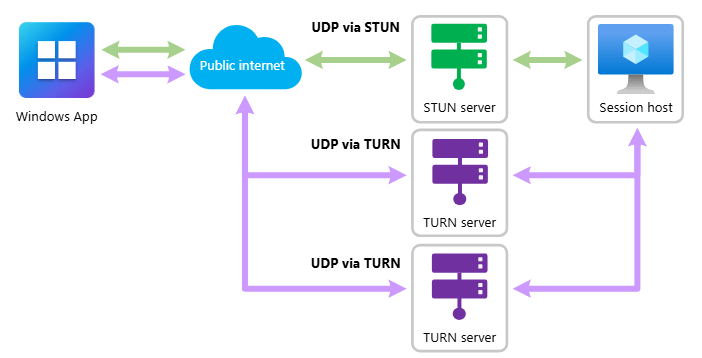
RDP Multipath basically says “stuff it, let’s use multiple paths at once” and intelligently switches between them. So if your primary UDP connection starts playing up, it seamlessly fails over to TCP without the user even knowing. Pretty clever, really.
The magic happens because it’s constantly monitoring multiple network paths simultaneously. Your video calls stay smooth, file transfers don’t drop, and most importantly – users stop complaining about random disconnections!
Prerequisites
Before you get excited and try to enable this everywhere, here’s what you actually need:
RDP Shortpath Must Be Working: This isn’t optional. If you haven’t got Shortpath configured properly, Multipath won’t work. Period. Sort that first.
Client Versions Matter:
- Windows App 2.0.559.0 or newer
- Or Remote Desktop client 1.2.6353 or newer
- That’s it – no web client support yet, unfortunately
Network Bits: You need the usual suspects open:
- UDP 3390 for private networks
- UDP 3478 for public networks
- TCP 443 and the 9350-9354 range for fallback
If your firewalls are blocking any of these, you’re going to have a bad time.
Use PowerShell to Enable or Disable MultiPath
This PowerShell script enables or disables RDP MultiPath, just use the -Action Enable or -Action Disable or even -Action Remove, where needed. Below can also be used via Azure Image Builder template too!
<#
.SYNOPSIS
    RDP Multipath Registry Management Script

.DESCRIPTION
    This script manages the RDP Multipath feature for Azure Virtual Desktop by setting or removing
    the SmilesV3ActivationThreshold registry value.

.PARAMETER Action
    Specify the action to perform:
    - Enable: Sets registry value to 100 (force enable RDP Multipath)
    - Disable: Sets registry value to 0 (disable RDP Multipath)
    - Remove: Removes the registry value entirely (use default rollout)

.EXAMPLE
    .\Manage-RDPMultipath.ps1 -Action Enable
    Enables RDP Multipath immediately

.EXAMPLE
    .\Manage-RDPMultipath.ps1 -Action Disable
    Disables RDP Multipath

.EXAMPLE
    .\Manage-RDPMultipath.ps1 -Action Remove
    Removes the override and allows natural rollout

.NOTES
    Author: Let's ConfigMgr Blog
    Users must disconnect and reconnect to session hosts for changes to take effect
    Requires administrative privileges to modify registry
#>

[CmdletBinding()]
param(
    [Parameter(Mandatory = $true)]
    [ValidateSet("Enable", "Disable", "Remove")]
    [string]$Action
)

# Registry path and value name
$RegistryPath = "HKLM:\SYSTEM\CurrentControlSet\Control\Terminal Server\RdpCloudStackSettings"
$ValueName = "SmilesV3ActivationThreshold"

# Function to check if running as administrator
function Test-IsAdmin {
    $currentUser = [Security.Principal.WindowsIdentity]::GetCurrent()
    $principal = New-Object Security.Principal.WindowsPrincipal($currentUser)
    return $principal.IsInRole([Security.Principal.WindowsBuiltInRole]::Administrator)
}

# Function to create registry path if it doesn't exist
function Ensure-RegistryPath {
    param([string]$Path)

    if (!(Test-Path $Path)) {
        Write-Output "Creating registry path: $Path"
        try {
            New-Item -Path $Path -Force | Out-Null
            Write-Output "Registry path created successfully"
        }
        catch {
            Write-Error "Failed to create registry path: $_"
            exit 1
        }
    }
}

# Function to get current registry value
function Get-CurrentValue {
    try {
        $value = Get-ItemProperty -Path $RegistryPath -Name $ValueName -ErrorAction SilentlyContinue
        if ($value) {
            return $value.$ValueName
        }
        return $null
    }
    catch {
        return $null
    }
}

# Main script execution
try {
    Write-Output "RDP Multipath Registry Management Script"
    Write-Output "======================================="

    # Check if running as administrator
    if (!(Test-IsAdmin)) {
        Write-Error "This script requires administrative privileges. Please run as administrator."
        exit 1
    }

    # Get current value before making changes
    $currentValue = Get-CurrentValue
    if ($null -eq $currentValue) {
        Write-Output "Current state: Registry value not set (following natural rollout)"
    }
    else {
        Write-Output "Current state: Registry value is set to $currentValue"
    }

    Write-Output "Action requested: $Action"
    Write-Output ""

    switch ($Action) {
        "Enable" {
            Write-Output "Enabling RDP Multipath (setting value to 100)..."
            Ensure-RegistryPath -Path $RegistryPath

            Set-ItemProperty -Path $RegistryPath -Name $ValueName -Value 100 -Type DWord
            Write-Output "RDP Multipath has been enabled"
            Write-Output "Registry value set to: 100"
        }

        "Disable" {
            Write-Output "Disabling RDP Multipath (setting value to 0)..."
            Ensure-RegistryPath -Path $RegistryPath

            Set-ItemProperty -Path $RegistryPath -Name $ValueName -Value 0 -Type DWord
            Write-Output "RDP Multipath has been disabled"
            Write-Output "Registry value set to: 0"
        }

        "Remove" {
            Write-Output "Removing RDP Multipath override..."

            if ($null -ne $currentValue) {
                Remove-ItemProperty -Path $RegistryPath -Name $ValueName -Force
                Write-Output "Registry value removed successfully"
                Write-Output "RDP Multipath will now follow the natural Microsoft rollout"
            }
            else {
                Write-Output "Registry value doesn't exist - no action required"
            }
        }
    }

    Write-Output ""
    Write-Output "IMPORTANT: Users must disconnect and reconnect to their AVD sessions"
    Write-Output "for this change to take effect!"
    Write-Output ""

    # Verify the change
    $newValue = Get-CurrentValue
    if ($Action -eq "Remove") {
        if ($null -eq $newValue) {
            Write-Output "Verification: Registry value successfully removed"
        }
        else {
            Write-Warning "Verification failed: Registry value still exists"
        }
    }
    else {
        $expectedValue = if ($Action -eq "Enable") { 100 } else { 0 }
        if ($newValue -eq $expectedValue) {
            Write-Output "Verification: Registry value correctly set to $newValue"
        }
        else {
            Write-Warning "Verification failed: Expected $expectedValue but got $newValue"
        }
    }
}
catch {
    Write-Error "An error occurred: $_"
    exit 1
}Trust but Verify
From a client perspective, you can see that MultiPath is enabled by opening up Connection Information, whilst in a session via the Windows App:

You can also check the AVD logs (assuming you are capturing these), using the WVDCheckpoints table and KQL:
// Summary query to count Multipath vs non-Multipath connections
WVDCheckpoints
| where Name == "ShortpathEstablished"
| extend ParsedParameters = parse_json(Parameters)
| extend UdpType = tostring(ParsedParameters.initialUdpType)
| extend IsMultipath = iff(UdpType contains "Multipath", "Multipath", "Standard")
| summarize ConnectionCount = count() by IsMultipath, UdpType
| order by ConnectionCount desc

// View users with MultiPath Enabled Connections
WVDCheckpoints
| where Name == "ShortpathEstablished"
| where Parameters contains "Multipath"
| extend ParsedParameters = parse_json(Parameters)
| extend UdpType = tostring(ParsedParameters.initialUdpType)
| where UdpType contains "Multipath"
| project TimeGenerated, UserName, CorrelationId, UdpType, Source
| order by TimeGenerated desc
Things to Watch Out For
Windows Only: Don’t get your hopes up if you’ve got Mac or mobile users – it’s Windows clients only for now.
Shortpath Dependency: I can’t stress this enough – if Shortpath isn’t working, neither is Multipath. Get that sorted first.
Not Magic: It won’t fix fundamental network issues, but it’ll make them much less noticeable for users.
Until next time, happy AVD’ing 😊

