


Last Updated on 14/04/2026 by Alex
G’day, a quick post on how you can remove the Chat icon from the taskbar on Windows 11 devices using Microsoft Intune. Before we begin, this policy only applies to Windows 11 Enterprise editions. Let’s dig in….
Creating a Custom Configuration Profile
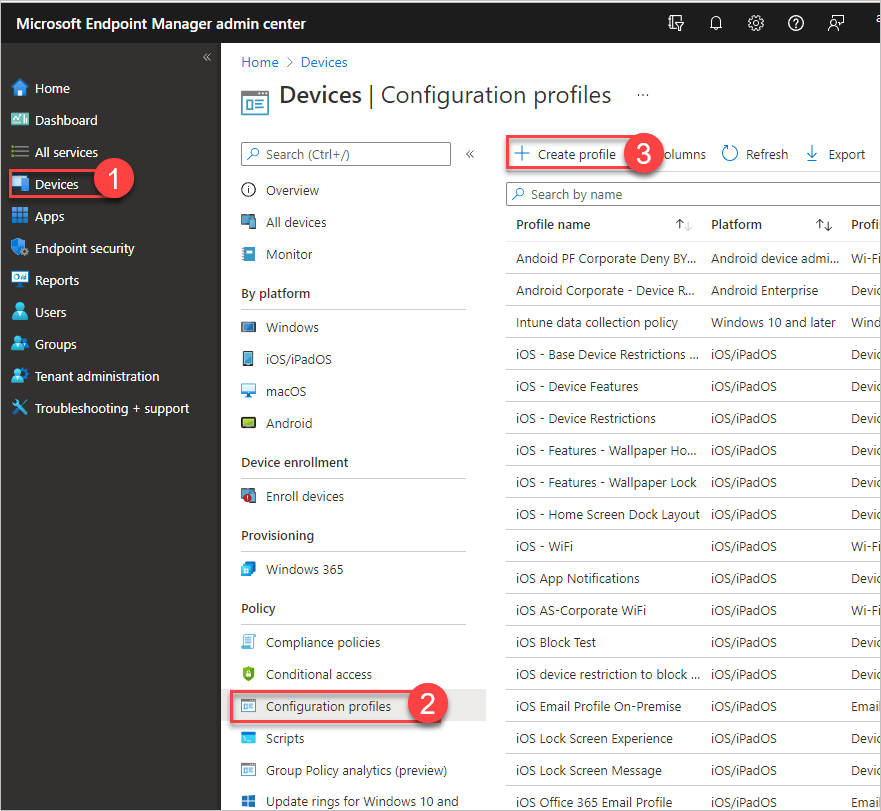
Log in to the Intune portal, go to Devices, Configuration Profiles and then click Create Profile:
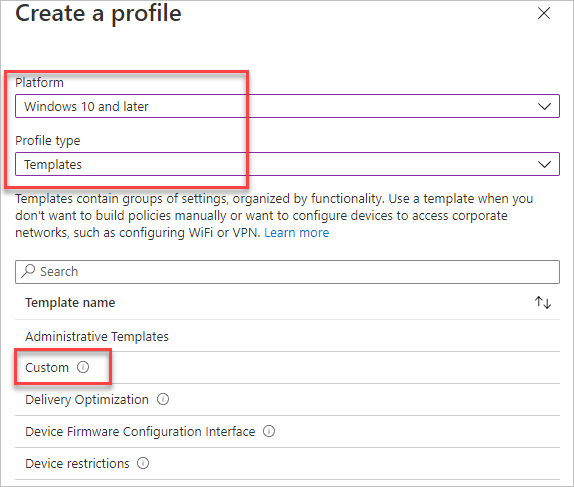
Now select Windows 10 and later platform, Templates for Profile type and then Custom:
Give your profile an appropriate Name and Description:

On the Configuration settings page, click Add, which will bring up a new OMA-URI settings page. Type in the following:
| Setting | Value |
|---|---|
| Name | Remove Chat |
| Description | Removes Windows 11 Teams Chat |
| OMA-URI | ./Device/Vendor/MSFT/Policy/Config/Experience/ConfigureChatIcon |
| Data type | Integer |
| Value | 3 |
📝 Note
If you want to see more options for the integer value and its meaning, see this page for more details.
Now deploy to your test device.
💡Tip
As this policy is only applicable to Windows 11 Enterprise endpoints, consider using a filter to target this OS version and edition only so errors do not appear within the Intune portal. See my previous post on this here.
Trust but Verify
On a Windows 11 Enterprise device, confirm that the chat icon has indeed been removed:

📝 Note
If you’re using subscription-based Windows 10\11 E3+ licences and using Autopilot, you may have to log out and log back in to see the changes.

